Claude Code 실전 (2): Hooks로 워크플로우 자동화
Claude가 코드를 생성할 때마다 자동으로 린트, 테스트, 보안 검사를 실행한다면? Hooks로 팀 워크플로우를 자동화하는 법.
Claude Code 실전 (2): Hooks로 워크플로우 자동화
Claude가 코드를 생성할 때마다 자동으로 린트, 테스트, 보안 검사를 실행한다면? Hooks로 팀 워크플로우를 자동화하는 법.
TL;DR
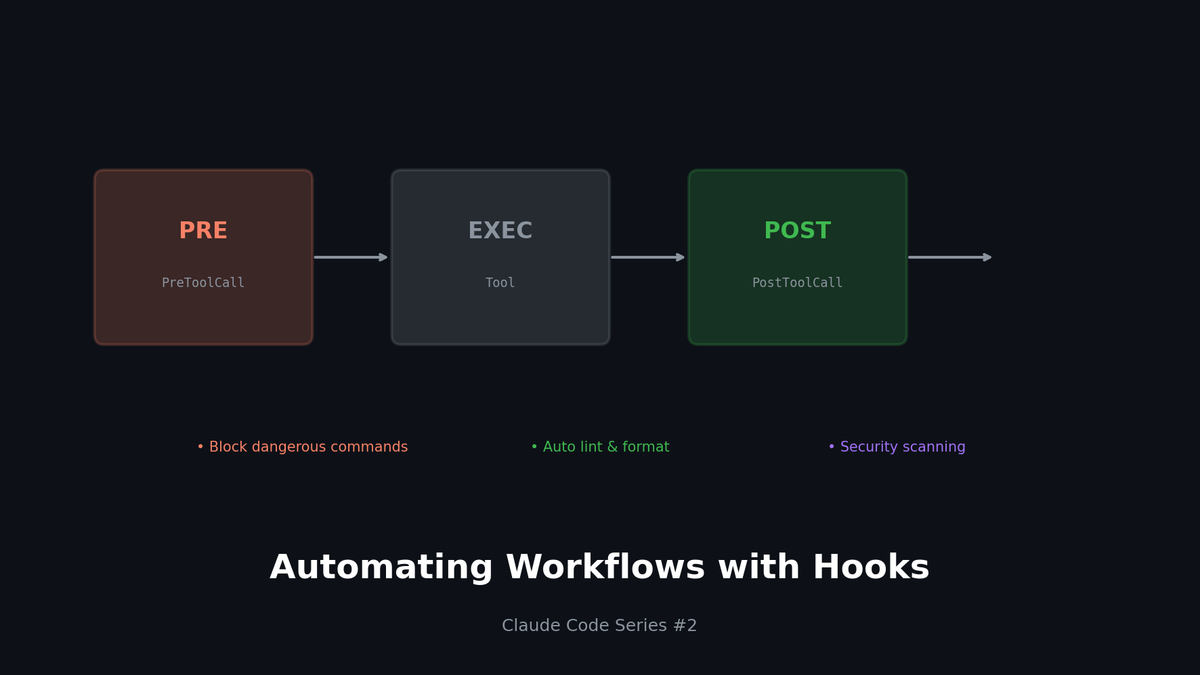
- Hooks: Claude Code의 도구 실행 전후에 자동으로 스크립트 실행
- PreToolCall: 위험한 작업 전 확인, 민감한 파일 보호
- PostToolCall: 코드 생성 후 자동 린트/포맷, 보안 스캔
- Notification: Slack/Discord 알림으로 팀과 실시간 공유
1. Hooks가 뭔가요?
기존 워크플로우의 문제
- Claude가 코드 작성 완료
- 개발자가 수동으로
npm run lint실행 - 린트 에러 10개 발견
- "Claude, 이거 고쳐줘"
- 수정 후 또 수동으로 린트 실행... 무한 반복
Hooks를 사용하면
- Claude가 코드 작성 완료
- Hook이 자동으로 lint 실행 → 에러 발견 → Claude에게 피드백
- Claude가 린트 에러 자동 수정
- Hook이 다시 lint 실행 → 통과
Hooks는 Claude의 도구 실행에 연결되는 자동화 스크립트입니다.
2. Hook 종류와 실행 시점
4가지 Hook 타입
| Hook | 실행 시점 | 주요 용도 |
|---|---|---|
| `PreToolCall` | 도구 실행 전 | 위험 작업 차단, 확인 요청 |
| `PostToolCall` | 도구 실행 후 | 자동 검증, 포맷팅 |
| `Notification` | 이벤트 발생 시 | 외부 알림 (Slack 등) |
| `Stop` | 세션 종료 시 | 정리 작업, 리포트 생성 |
Hook 설정 파일 위치
text
프로젝트/
├── .claude/
│   └── settings.json    # 프로젝트별 Hooks
└── ~/.claude/
    └── settings.json    # 전역 Hooks
3. 실전 예제: PostToolCall
예제 1: 자동 린트 + 포맷
`.claude/settings.json`
json
{
  "hooks": {
    "PostToolCall": [
      {
        "matcher": "Edit|Write",
        "command": "npm run lint:fix -- $CLAUDE_FILE_PATH",
        "description": "Auto-fix lint errors after file changes"
      }
    ]
  }
}
작동 방식:
- Claude가
Edit또는Write도구 사용 - Hook이 해당 파일에
npm run lint:fix실행 - 결과가 Claude에게 피드백됨
예제 2: 보안 스캔 (Trivy)
json
{
  "hooks": {
    "PostToolCall": [
      {
        "matcher": "Edit|Write",
        "pattern": "*.tf|*.yaml|Dockerfile",
        "command": "trivy config $CLAUDE_FILE_PATH --severity HIGH,CRITICAL",
        "description": "Security scan for IaC files"
      }
    ]
  }
}
인프라 코드 변경 시 자동으로 보안 취약점 검사!
예제 3: TypeScript 타입 체크
json
{
  "hooks": {
    "PostToolCall": [
      {
        "matcher": "Edit|Write",
        "pattern": "*.ts|*.tsx",
        "command": "npx tsc --noEmit $CLAUDE_FILE_PATH 2>&1 | head -20",
        "description": "Type check TypeScript files"
      }
    ]
  }
}
4. 실전 예제: PreToolCall
예제 1: 민감한 파일 보호
json
{
  "hooks": {
    "PreToolCall": [
      {
        "matcher": "Edit|Write",
        "pattern": "*.env*|*secret*|*credential*",
        "command": "echo '⚠️ BLOCKED: Attempting to modify sensitive file' && exit 1",
        "description": "Prevent modification of sensitive files"
      }
    ]
  }
}
`.env` 파일 수정 시도 시 자동 차단!
예제 2: 위험한 Bash 명령어 차단
json
{
  "hooks": {
    "PreToolCall": [
      {
        "matcher": "Bash",
        "command": "scripts/check-dangerous-commands.sh \"$CLAUDE_BASH_COMMAND\"",
        "description": "Block dangerous bash commands"
      }
    ]
  }
}
`check-dangerous-commands.sh`
bash
#!/bin/bash
COMMAND="$1"

# 위험한 패턴 체크
DANGEROUS_PATTERNS=(
  "rm -rf /"
  "rm -rf ~"
  ":(){ :|:& };:"  # fork bomb
  "> /dev/sda"
  "mkfs."
  "dd if=/dev/zero"
)

for pattern in "${DANGEROUS_PATTERNS[@]}"; do
  if [[ "$COMMAND" == *"$pattern"* ]]; then
    echo "🚫 BLOCKED: Dangerous command detected: $pattern"
    exit 1
  fi
done

exit 0
5. 실전 예제: Notification
Slack 알림 설정
json
{
  "hooks": {
    "Notification": [
      {
        "event": "TaskComplete",
        "command": "scripts/notify-slack.sh \"$CLAUDE_TASK_SUMMARY\"",
        "description": "Notify Slack when task completes"
      }
    ]
  }
}
`notify-slack.sh`
bash
#!/bin/bash
MESSAGE="$1"
WEBHOOK_URL="${SLACK_WEBHOOK_URL}"

curl -X POST -H 'Content-type: application/json' \
  --data "{\"text\":\"🤖 Claude completed: ${MESSAGE}\"}" \
  "$WEBHOOK_URL"
Discord 알림
bash
#!/bin/bash
MESSAGE="$1"
WEBHOOK_URL="${DISCORD_WEBHOOK_URL}"

curl -X POST -H 'Content-type: application/json' \
  --data "{\"content\":\"🤖 Claude completed: ${MESSAGE}\"}" \
  "$WEBHOOK_URL"
6. 팀을 위한 Hook 설정 예시
프론트엔드 팀
json
{
  "hooks": {
    "PostToolCall": [
      {
        "matcher": "Edit|Write",
        "pattern": "*.tsx|*.ts",
        "command": "npm run lint:fix -- $CLAUDE_FILE_PATH && npm run format -- $CLAUDE_FILE_PATH",
        "description": "Lint and format TypeScript files"
      },
      {
        "matcher": "Edit|Write",
        "pattern": "*.css|*.scss",
        "command": "npx stylelint --fix $CLAUDE_FILE_PATH",
        "description": "Lint CSS files"
      }
    ],
    "PreToolCall": [
      {
        "matcher": "Write",
        "pattern": "src/components/ui/*",
        "command": "echo '⚠️ UI component 생성은 디자인 시스템 가이드를 참고하세요' && exit 0",
        "description": "Warn about UI component creation"
      }
    ]
  }
}
백엔드 팀
json
{
  "hooks": {
    "PostToolCall": [
      {
        "matcher": "Edit|Write",
        "pattern": "*.py",
        "command": "black $CLAUDE_FILE_PATH && ruff check --fix $CLAUDE_FILE_PATH",
        "description": "Format and lint Python files"
      },
      {
        "matcher": "Edit|Write",
        "pattern": "*.sql",
        "command": "sqlfluff fix $CLAUDE_FILE_PATH",
        "description": "Format SQL files"
      }
    ],
    "PreToolCall": [
      {
        "matcher": "Bash",
        "pattern": "*migrate*|*migration*",
        "command": "echo '⚠️ DB 마이그레이션은 반드시 리뷰 후 실행하세요' && exit 0",
        "description": "Warn about migrations"
      }
    ]
  }
}
DevOps 팀
json
{
  "hooks": {
    "PostToolCall": [
      {
        "matcher": "Edit|Write",
        "pattern": "*.tf",
        "command": "terraform fmt $CLAUDE_FILE_PATH && terraform validate",
        "description": "Format and validate Terraform"
      },
      {
        "matcher": "Edit|Write",
        "pattern": "*.yaml|*.yml",
        "command": "yamllint $CLAUDE_FILE_PATH",
        "description": "Lint YAML files"
      },
      {
        "matcher": "Edit|Write",
        "pattern": "Dockerfile*|*.dockerfile",
        "command": "hadolint $CLAUDE_FILE_PATH",
        "description": "Lint Dockerfiles"
      }
    ],
    "PreToolCall": [
      {
        "matcher": "Bash",
        "pattern": "*kubectl*delete*|*terraform*destroy*",
        "command": "echo '🚨 프로덕션 리소스 삭제 명령입니다. 정말 실행하시겠습니까?' && exit 1",
        "description": "Block destructive commands"
      }
    ]
  }
}
7. Hook 디버깅 팁
1) 명령어 테스트
Hook을 설정하기 전에 명령어가 제대로 작동하는지 테스트:
bash
# 환경 변수 시뮬레이션
CLAUDE_FILE_PATH="src/components/Button.tsx"
npm run lint:fix -- $CLAUDE_FILE_PATH
2) 로깅 추가
json
{
  "hooks": {
    "PostToolCall": [
      {
        "matcher": "Edit",
        "command": "echo \"[$(date)] Edited: $CLAUDE_FILE_PATH\" >> ~/.claude/hook.log && npm run lint:fix -- $CLAUDE_FILE_PATH",
        "description": "Log and lint"
      }
    ]
  }
}
3) exit 코드 이해
exit 0: 성공, Claude 계속 진행exit 1: 실패, Claude에게 에러 피드백- 출력 내용이 Claude에게 전달됨
8. 환경 변수 레퍼런스
Hook에서 사용 가능한 환경 변수:
| 변수 | 설명 | 사용 가능한 Hook |
|---|---|---|
| `CLAUDE_FILE_PATH` | 대상 파일 경로 | Edit, Write, Read |
| `CLAUDE_BASH_COMMAND` | 실행할 Bash 명령어 | Bash |
| `CLAUDE_TOOL_NAME` | 사용된 도구 이름 | 모든 Hook |
| `CLAUDE_TASK_SUMMARY` | 작업 요약 | Notification |
| `CLAUDE_SESSION_ID` | 세션 ID | 모든 Hook |
9. 실전 시나리오: CI/CD 파이프라인 연동
PR 생성 시 자동 체크
json
{
  "hooks": {
    "PostToolCall": [
      {
        "matcher": "Bash",
        "pattern": "*git push*|*gh pr create*",
        "command": "scripts/pre-push-checks.sh",
        "description": "Run checks before push"
      }
    ]
  }
}
`pre-push-checks.sh`
bash
#!/bin/bash
set -e

echo "🔍 Running pre-push checks..."

# 1. 린트
echo "  → Lint check..."
npm run lint

# 2. 타입 체크
echo "  → Type check..."
npm run typecheck

# 3. 테스트
echo "  → Running tests..."
npm run test

# 4. 빌드 확인
echo "  → Build check..."
npm run build

echo "✅ All checks passed!"
마무리
Hooks는 단순한 자동화가 아닙니다.
팀의 품질 기준을 코드로 강제하는 방법입니다.
| Hook 타입 | 주요 활용 |
|---|---|
| PreToolCall | 위험 방지, 가이드 제공 |
| PostToolCall | 자동 검증, 포맷팅 |
| Notification | 팀 커뮤니케이션 |
| Stop | 세션 리포트 |
다음 편에서는 Custom Skills를 활용해 팀만의 표준 명령어를 만드는 방법을 다룹니다.
시리즈 목차
- Context가 전부다
- Hooks로 워크플로우 자동화 (현재 글)
- Custom Skills로 팀 표준 만들기
- MCP 서버 구축하기
- 모델 믹스 전략
이메일로 받아보기
관련 포스트
AI Tools
Claude Code를 서버에서 24/7 돌리고 싶었다 — 그래서 VibeCheck을 만들었습니다
노트북 닫으면 Claude Code가 죽습니다. 서버에서 24/7 돌리고 폰으로 접속하는 VibeCheck을 만들었습니다. MIT 오픈소스.
AI Tools
소파에서 Claude에게 명령 내리고 싶었다 — Remote Control 솔직 후기
퇴근길에 폰으로 Claude Code 확인하고 싶어서 Remote Control 써봤습니다. 좋은데 노트북 닫으면 끝나더라구요. 그래서 직접 만들었습니다.
⚡️
Ops & Systems
Google Stitch MCP API: AI 에이전트로 UI 디자인 생성하기
Google Labs의 Stitch가 MCP 서버를 지원하여 Claude Code, Cursor 등에서 API를 통해 UI 디자인을 생성할 수 있습니다. 참고: 일부 내용은 비공식 소스 기반이며 변경될 수 있습니다.